5 Steps for the Perfect Tabbed Navigation Menu
I’ve just been browsing a site of a service that I’m trying out, and while I like the site and a lot of the interface, I came across a little design hiccup. One of the sections had a tabbed navigation menu that didn’t quite work. Here’s a screenshot:
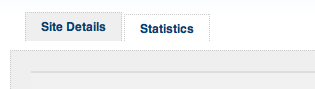
Can you tell which section I’m currently in? Could be “Site Details” because the tab seems to be bigger and the same color as the grey area below? Could be “Statistics” because it looks attached to the white area underneath? It’s not easy to tell, and this really confused me as I clicked the wrong tab by mistake.
Tabbed menus have become one of the most popular ways to implement navigation. That’s because tabs not only look good, but they depict real life folder tabs, which makes them instantly familiar and their function obvious. They also show which section of the site or web application you’re currently in (or at least they should!).
Here’s my 5 steps to ensure your tabbed navigation menu is perfectly implemented:
1. Connect the active tab to the content
In the example above I was actually in the “Site Details” section, but because the tab isn’t connected to the content it’s not very obvious. The active tab should always flow into the content area to show the user where they’re currently at.
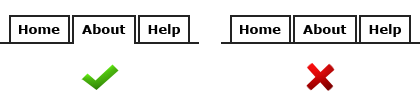
2. Make other tabs a different color
To make the active tab more obvious, change the color of the other tabs. If you’re depicting 3D style tabs, color the other tabs in a darker shade to create depth. You can also add a drop-shadow for greater effect.
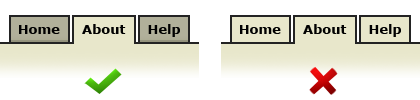
3. Change the font color on the active tab
Changing the font color will give your active tab even more differentiation, and will allow people to quickly scan the navigation for the other pages available to them.
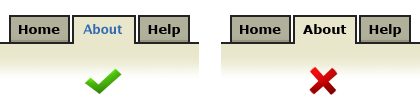
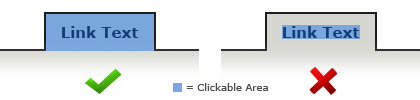
4. Have the link area span the whole size of the tab
Set the height and width of the link itself to cover the whole area of the tab image. This makes the tab more conformable to click because of the larger click area. You can do this by increasing the CSS padding property applied to the tab anchor.
5. Make sure the landing page has its own active tab
When the user first arrives at your site or web app, they’ll notice the tabbed navigation. If none of the tabs are active, the tabbed metaphor will become less obvious because they’ll look more like buttons. With an active tab present on the landing page, the user will instantly recognize that this is the navigation, and they’ll also see where they currently are.
That’s it — simple. Following a few simple usability principles when implementing the navigation for your site or web app can make a huge impact on how easy and satisfying your site is to browse. Getting these basics right will ensure happy visitors.
20 Aug, 2008
Great tips, you’d be surprised how many people get this basic stuff wrong.
20 Aug, 2008
On search.io you can see a smart use of tabs:
http://search.io/search-engines/
20 Aug, 2008
Great site Dmitry.
I hope you continue writing these posts.
20 Aug, 2008
Great post here, Dmitry. I’ve come across all of these issues at one time and your recommendations are spot on.
20 Aug, 2008
Nice post. Really clear, i like that. However I would make the text of the selected tab pop some more instead of making it more faded (step 3). This way it’s even more clear where the user is in the site.
20 Aug, 2008
Groundbreaking…
20 Aug, 2008
Very good article!
20 Aug, 2008
Good point benvds — I’ve modified that image to return the contrast to the text. My logic behind fading it was to indicate that this item shouldn’t be clicked and to direct the user’s focus to the other tabs which are available.
But you are right, losing contrast also makes it difficult to read, and probably isn’t a good idea for an important UI element such as this.
20 Aug, 2008
Really great tips Dmitry, very useful!
20 Aug, 2008
Thank god you wrote #4. That pisses me off so much when people don’t make their links usable. Good rules of thumb! Nice post!
21 Aug, 2008
Great tips, I am just creating some tabs so this is handy and just in time for the new design :)
Thanks
21 Aug, 2008
Not sure if changing colors/fonts will help if there are only 2 tabs.
21 Aug, 2008
Thanks for the positive comments everyone, I’m glad you found this useful.
Kenny: Probably won’t help a lot if there’s only two tabs, you are right. You’d still need to connect the tab to the content background though, and there are sites out there that don’t even do that :)
22 Aug, 2008
Interesting post, your contact form does not work though.
22 Aug, 2008
Thanks for the heads up Lucas! Seems like I added too much caching to that page :) Fixed it now.
23 Aug, 2008
another gr8 post and useful tips :) Thanx a million!
17 Sep, 2008
[...] 5 Steps for the Perfect Tabbed Navigation Menu [...]
26 Sep, 2008
Awesome and simple tips! Thank you.
7 Oct, 2008
I agree with this article. I followed the same rules when I made a tab design on my site a couple months ago.
9 Oct, 2008
[...] 5 étapes à respecter pour réaliser une navigation par onglet correctement ! [...]
20 Oct, 2008
[...] 17. 5 Steps for the Perfect Tabbed Navigation Menu [...]
20 Nov, 2008
[...] 5 Steps for the Perfect Tabbed Navigation Menu [...]
25 Nov, 2008
[...] 5 Steps to a Perfect Tabbed Navigation Menu - Usability Post show you exactly what to check for when developing a tabbed navigation [...]
26 Dec, 2008
owralrywraaxdvkrwell, hi admin adn people nice forum indeed. how’s life? hope it’s introduce branch ;)
28 Dec, 2008
[...] 5 Steps to a Perfect Tabbed Navigation Menu - Usability Post show you exactly what to check for when developing a tabbed navigation [...]