De-clutter Your Interface With Hover Controls
One of the more challenging things as a user interface (UI) designer is to achieve a good balance between showing just enough controls on the screen to allow the user to perform their tasks quickly, and yet not so much that the whole interface looks overwhelming and complicated.
Too little controls will mean the user will have to access stuff through menubars and other navigation panels, wasting their time. Too many and the user will just get lost, unable to find the stuff they need.
Right now I’m working on my own web application (I’ll write about that later) and I’ve found a nice little CSS solution you can use to cut down on the clutter and yet retain the quick access to the controls users will need. Hover controls with CSS. No javascript — just CSS. Let’s see an example.
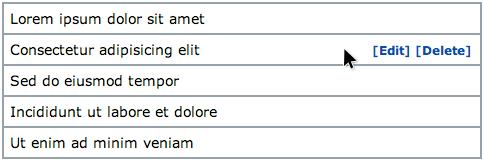
Suppose our web application displays a list of notes. For each note we want to be able to edit or delete it. So for each item we’ll want to show the relevant controls; either as text links, buttons or icons. I’m going to use text links. So here’s what it might look like:
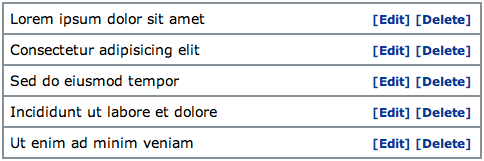
But the thing is, showing all those controls for every item is repeating yourself. The user isn’t going to need all those controls all of the time so this is just leaving a lot of screen clutter. What we can do is hide the controls, and only show them when the user hovers over the note with their mouse cursor. We show the controls in the right context — the context of that note.

This can be done with a simple CSS selector. Assuming our div or list item class is called “note”, and our controls div class is called “note_controls” (and note “note_controls” is placed inside the “note” tags), the CSS code will look like this (ignoring all the other formatting):
.note_controls { display: none; }
.note:hover .note_controls { display: block; }
That’s it. When you hover over each note, the controls will show up, along with everything else inside them. Sure, the user might not notice the controls at first, but this is something they will learn instantly once they see it, and it will make a big difference in cleaning up the interface and making it simpler.
P.S. You can find the full html and css code to the example above here.
19 Nov, 2008
As you say, the user might not notice the controls at first. And even if it looks simple once you hovered the list for the first time, the user will be confused at the very beginning.
Maybe having the text displayed in a lighter color by default and changing the color on hover would be easier for the user to understand?
(This is completely from a usability standpoint—otherwise, I like to have small elements like links hidden at first, and showing them only when needed to have a cleaner page.)
19 Nov, 2008
What about IE6?
19 Nov, 2008
You always can fix all lacks with few lines of java script code :)
19 Nov, 2008
For IE6:
* html .note_controls { display: block; }
Problem solved. If you use a legacy browser, you get a cluttered interface, and if you’re really concerned just put in some javascript for IE6.
Great tip, used it many times.
19 Nov, 2008
Very cool. This gets me thinking about other ways of simplifying things - like only showing a word as a link if the user hovers over it, showing it as plain text otherwise.
19 Nov, 2008
Very cool but not so accessible for screen readers. The screen reader will not read anything that is not displayed so unfortunately this has serious limitations from a usability perspective for screen readers.
19 Nov, 2008
Good point Joe, I didn’t think of this :/ However, I can think of other ways to “hide” the controls without getting rid of the text. For example, you could make the link text the same color as the background, or place another div over them and hide that div when you hover to reveal the links. Definitely something to think about from accessibility standpoint — thanks Joe.
Teddy: Thanks for the IE6 fix :)
19 Nov, 2008
i think to solve the screen reader issue, you could use a large offset padding to hide the links. and on hover, the padding would be back to normal, showing the text. kind like how the css sprites work. also it’d degrade nicely with css turned off too.
i’ll have to do some testing of my own, so don’t take my words for it yet! :)
19 Nov, 2008
Thank you! I’ve always seen web apps do this but never bothered to think about using it myself. You literally showing me how to has now convinced me to do it.
:)
19 Nov, 2008
Very nice, and super simple. =]
19 Nov, 2008
Be very careful with this though. Forcing your user to ‘minesweep’ for controls isn’t a great idea. So use it because you need to, not just because you want to.
19 Nov, 2008
Be careful when using hidden controls. We have done usability tests (lab testing) and have found that majority of users do not scroll over text-based content and therefore never discover the actions. Like you mentioned, it is best to maintain the balance between too much/too less clutter and effectively use the space.
Btw, I don’t believe the :hover pseudo class is supported in IE.
19 Nov, 2008
@Dmitry
Great post! I think it represents a good solution to the clutter problem. It shows up when needed. Users will be moving their mouse to the item they are interested in anyway, so having a nice hover background change and the controls shows up makes sense and would not make a user feel lost. I also like @Perceval McElhearn’s solution to use a light gray text that becomes the link color when the line is hovered. That would probably be how I would implement it on a client site.
Interestingly, 37Signals implementation on Backpack follows a similar though process, but the tools show up out of the way and with not enough contrast to draw attention making the user have to “figure out” what it happening… not so good. (Works great once you get used to it).
19 Nov, 2008
@Pras Sarkar
:hover is supported in IE7+
In IE6 it is only supported on link elements.
20 Nov, 2008
I would also set the background of the entire cell (div, li, etc) to note that the cursor is highlighting that row. For list where the subject text if far to the left of the actions, it makes it much easier for the user to discern which subject they are about to perform the action on.
I also prefer the dimmed version of the actions.
20 Nov, 2008
Good trick. However, this code will probably not work on IE6, as it only supports the :hover pseudo selector on links, not divs or lists.
If you’re designing/developing a general UI that’s supposed to be used by a lot of people, I do believe you still have to take IE6 into account. Dear me, my college only switched to IE7 last week with the latest format of school computers. To get this to work, you’ll have to add a dash of javascript to keep it all in check.
20 Nov, 2008
Hmm, seems I’m a bit late with my IE6 comment :p
20 Nov, 2008
In order to give a hint to the users without cluttering the interface, you can use some CSS3 selectors.
The first element has the controls when you’re not hovering the notes.
.notes:not(:hover) .note:first-child .note_controls {display:block;}
20 Nov, 2008
I have to agree with Perceval. A high percentage of the users won’t notice the edit and delete options. That’s not really good usability..
Maybe it’s an idea to simply highlight the links on mouseover…
20 Nov, 2008
Great example, although I use this already for a couple of years ;)
I do agree with Perceval McElhearn #1, which I too found out. Therefor I did the following:
white (#FFFFFF) background
light blue-ish grey (#DDEEFF) ‘hidden’ links
blue (#3366FF) ‘normal’ links
And to make sure it works on al browser I use javascript (jQuery) to make sure it always works (in case of no js it’s just blue)
20 Nov, 2008
I’ve been doing stuff like this for a while now, giving users non essential information regarding a link or whatever on :hover. Regarding the accessibility issue that people have mentioned — visibility:hidden; is marginally better than display:none;. Some screen-readers pick up visibility:hidden;, most don’t get display:none;, so I’d suggest using that instead.
20 Nov, 2008
[...] Usability Post: De-clutter Your Interface With Hover Controls [...]
20 Nov, 2008
If I’m honest this reminds me of mystery meat navigation. It seems alright from a design perspective, but from a usability perspective its cumbersome.
Instead perhaps you can show the items faded out so theyre still visible but do not contribute to visual clutter, and then when hovered over they come into focus in full colour/contrast. Its not just screen readers etc that apply.
20 Nov, 2008
[...] to carry on support IE6 (see the Huddle blog post) and let the users deal with an upgrade for the latest and greatest features when they feel the need - we can better spend our time on new [...]
20 Nov, 2008
[...] Usability Post » De-clutter Your Interface With Hover Controls Very cool way to simplify an interface using CSS hover. (tags: css ui webdesign usability interface) [...]
20 Nov, 2008
Just have to watch the accessibility… I’m not sure how well the idea in the OP would work with a screenreader as said before. Using a padding to show/hide might be a better bet.
Helps to remember this when you have to be 508 as some people do.
20 Nov, 2008
Thanks for the comments everyone. Changing the div background to highlight the current one you’re hovering over is a great idea too — makes it easier to focus on that item.
I think these sort of controls apply more for web applications rather than websites. In these cases you would expect to have a learning curve anyway, and this type of thing can be explained in the manual or screencast to get people started quickly. I think in this case the usability vs learnability tradeoff is very small because it becomes obvious how it works once you notice it.
Keeping the clutter down is important in my opinion because the user will be able to figure out the other controls quicker since there’s less to look at.
20 Nov, 2008
Yeah throwing the links offsite (text-indent:999em;) and then bringing them back on hover would solve screen reader issue, I believe.
21 Nov, 2008
[...] offers some thought provoking advice with De-clutter Your Interface With Hover Controls - definately worth [...]
22 Nov, 2008
[...] De-clutter Your Interface With Hover Controls [...]
22 Nov, 2008
It seems many of these comments focus on the hiding of the action links to prevent clutter. However, if all of the links are hidden, the interface suddenly becomes rather unintuitive.
I would probably opt for making the links lighter, rather than hiding them alltogether. Make then a light grey or blue, just enough so that they are still visible. This prompts the user to use the actions for a particular row, without seemingly cluttering the interface. :)
22 Nov, 2008
The problem with making them lighter/semi-transparent is that they’ll look like if they were disabled and they effects will be even worse on buttons. Personally I prefer to show all buttons - the clutterness shpuldn’t be solved by hiding buttons but by changing the workflow/functions to harmlessly decrease the number of necessary controls.
24 Nov, 2008
[...] Usability Post » De-clutter Your Interface With Hover Controls (tags: webdev webdesign usability ui tutorials) [...]
25 Nov, 2008
Fuck IE6 users.
26 Nov, 2008
My 2 cents…
To make thins work with screen readers, simply make the text to be the same colour as the background, i.e. white, and change the colour on hover over.
To get around the usability issue of the user not knowing that the controls are there, make them a very light shade of gray so that they are visible but get pushed to the comparative background so their clutter is significantly reduced.
26 Nov, 2008
Sorry, just seen that my second idea has already been put forward.
26 Nov, 2008
Michel, You can’t just make blanket statements like that. There may be plenty of occasions where this is the most usable option given the context. I understand what you’re saying but it’s unfortunately not that straight forward.
26 Nov, 2008
Do you have any HCI training? Seems like a lot of your articles are based on how you like things and not on research or principles derived from it.
26 Nov, 2008
sorry don’t mean to be so harsh and maybe I’m wrong about the articles. I just think testing, eye-tracking studies, etc. are invaluable.
28 Nov, 2008
Making the links invisible when you first load the page creates the problem of mystery links that is a far more egregious UI issue than redundant links that might create clutter. This can probably be solved by placing instructions or maybe graying the links and light them on hover.
30 Nov, 2008
Have to agree with Philip; hiding buttons is just treating the symptoms, not the actual cause (bad workflow). What’s worse, it it actually hiding the actual UI from the user, forcing him to sweep the UI for hidden controls. (Lucas Arts adventures, anyone?)
I would go for just redesigning the UI / workflow to work better with such element list without clutter.
Don’t get me wrong; UI on demand is a great thing on decluttering things BUT it should be used very carefully. When it’s forcing user to do extra chores just to see the controls, youre better of with something else.
2 Dec, 2008
[...] De-clutter Your Interface With Hover Controls [...]
7 Dec, 2008
FWIW to all of the nay-sayers, there are some pretty mainstream apps and sites out there doing this. iTunes, for example, only shows the “search in the iTunes store” arrow button for songs that are either playing or selected. And Yahoo Local search results have a link bar on hover at the bottom of each result.
I also used this technique in my designs for Yahoo Mash, which is unfortunately no longer up.
7 Dec, 2008
Thanks for the examples Dave. Another big one is Twitter, where you can see the star and reply buttons when you hover over each message.
16 Dec, 2008
Hi,
I have a question: am trying to use in tables but can’t find how to show some td if hovering a tr..?
19 Dec, 2008
I mostly agree with all the “nay-sayers” in some way… Isn’t hiding features something that forces the user to get some form of training in order to use your site ?
21 Dec, 2008
For all the nay-sayers, you’re speaking in theoretical terms. We’ve not only used this in our own designs for clients, which we’ve done extensive usability testing on, and have tested a number of client apps using this method in the context Dmitry shows—table data. It’s a solid design decision for rows of data.
Hiding UI elements randomly in the interface isn’t intuitive. But we’re not talking randomly here, we’re talking about on lists or rows of table data. In our tests, users typically move their mouse over the lists of information, often intentionally as they’re exploring, but sometimes by accident. Just because it’s not there initially, doesn’t mean they won’t discover it—they do.
In fact, in the context that Dmitry provides, we’ve never seen a user not discover this type of additional functionality. And when they do, they respond very positively.
Usability and good design decisions are contextual. A rule, or guideline needs to consider the context of use. In this context, this design solution is a very good one and quite usable based on our research. Additionally, this is getting more and more common, which creates both familiarity and predictability—two important characteristics for usability.
22 Dec, 2008
This hiding thing can surely work very well, if the discovery problem is solved (maybe with a lighter “hover here for options” note/image) - under one major condition: You have a mouse cursor.
While screen readers are machines that can be tricked somehow (like with white text on a white background), a touch screen cannot be tricked. If there’s nothing to see, there’s nothing to tap on. No static visibility means no accessibility in this case. And touch screens aren’t something too far away nowadays. Did you try to operate such controls on an iPhone (which seems to be an often referred-to produce round here)? Or a Windows Mobile device with Opera Mobile? I don’t own one but I can well imagine that hovering something could be a bit of a hard task to accomplish on those… ;-)
22 Dec, 2008
Todd: thanks for your comments — it’s great to see this is something that worked for you. One big web app that uses such controls is Twitter, where you get the star and reply buttons as you hover each user’s message. I think it’s hard to not notice these controls as the area where they’re activated takes about 50% of the screen real estate — you’ll have to be careful to move the mouse around it to avoid them popping up :)
Yves: this is a great point. Can’t use these controls on an iPhone, or other touch screen devices. Definitely something to consider when implementing this.
22 Dec, 2008
steve: I don’t have any HCI training. A lot of my posts are my own opinions and techniques I use myself. I’m not an expert — usability and interface design are just things I’m really interested in and I like to write about.
Hopefully people will find the stuff I share here useful, and in the cases where I’m wrong, people will quickly point it on in the comments section :) Indeed, these discussions are often more valuable than the post itself as you can read a lot of different opinions and discover interesting resources they share.
1 Jan, 2009
[...] De-clutter Your Interface With Hover Controls [...]