Take a Step Back to See the Big Picture
I find that when you’re working on a web design — or even any other project involving typography and layout — it helps to squint or look at your design from a distance. What you want to do is to squint or go far away that the content would start blurring.
When content pieces blur together you begin to see how whitespace separates them into sections and groups. You can’t read the text itself, but you can see groups of text and the various sections that you’ve laid out.
Well… that’s what you want to see. If you see one big mess then it means your whitespace (the empty space between elements) isn’t doing its job.
Let me illustrate this with an example. Here’s a site (Listmixer) where whitespace usage could be improved:
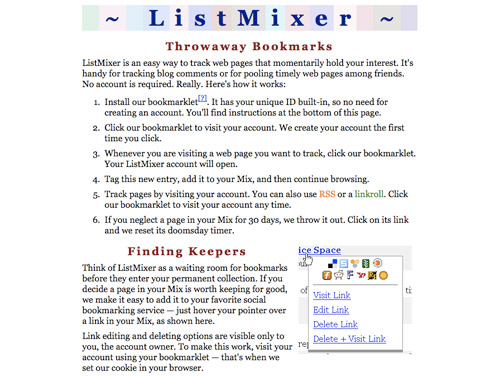
If you squint hard enough so that the contents begin to blur we’ll get something like this:
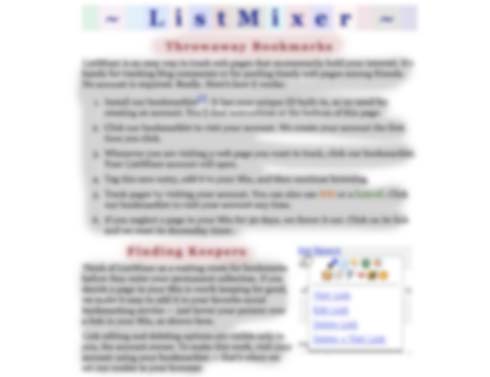
Two big blobs of text. This means that too much text is grouped up. Ideally you want to break things down into small bite size chunks that impatient visitors can swallow quickly. When there’s too much to read, these visitors may just give up and leave.
Here’s a better example of whitespace usage on the Opera browser’s features page:
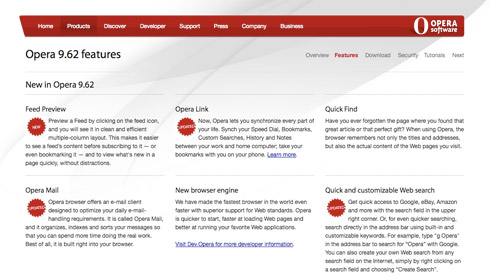
If we squint we get this:
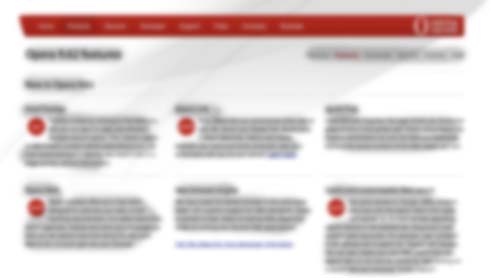
The text groups itself into smaller blobs that are clearly separate from each other. The whitespace here is sufficient and does its job well at separating content and giving each bit of text enough breathing room.
Sometimes it also helps to do this to a visual layout to see how its aesthetic works — see what the overall feel the design emanates. When your design is featured on thumbnails in CSS galleries or other blog posts, the design may be reduced to a small size that begins to blur the contents. What will it look like then? Is there a unique pattern, shape, and color theme that remains even when the design reduced to a blur?
Taking a step back also allows you to see what a new visitor may make of your design. They don’t know what each bit of the site is or what the text says because they haven’t read it yet — they see one big page with various elements. What will they focus on first? What attracts attention? I find the method above lets you get a feel for what elements pop out of the page and how well whitespace works at separating those elements apart.
Good points. I’m curious, what do you think would be a better design for the first example?
Squinting is bad for your eyes! Can you share on how did you accomplish the blur?
Hey Justin,
What you want to do is ensure the content is in bite size pieces to satisfy the impatient folks (and most of us are tend to be impatient on the Web). So really you want to:
1) Split it up
2) Highlight the key element which catches the users’ attention so they know where to begin reading.
To get more precise, I would take the first couple of sentences that explain what the site is about and make them larger (different color or perhaps put them inside a box) and set them away from the rest. You want it to pop out. When the user arrives they will see big sentence or two that grabs them. They’ll read it because it’s short.
As it is, they arrive and see two big blocks of text. They don’t know that the first sentence is a description of the app — if they’re impatient enough they won’t even read it because the text just looks too scary and daunting.
Obviously the other section is now separate — the how to get started bit. I’d cut down the number of stages and give it a little more prominence as well — needs to be more scannable and have less text. The key thing though is keeping the description away.
In Opera’s case it’s also a lot of text, but the impatient user can just read the headings of each section to get an overview of features.
Vadim: True.. I don’t do it very often though all you really need to do is relax your eyes and close the eyelids so you can barely see. What I do sometimes is look at my site from the other side of the room as well. I’m a little shortsighted so it’s not too hard for me to get it blurred ;)
As for the blur: I messed about in Photoshop for a few minutes. Applied gaussian blur and also manually painted on some of the colors over the text to make the sections darker and chunkier. Not really a one step procedure I’m afraid.
I have also found the squinting rule help with identifying:
1. First thing a user will see when they land on the page.
2. Call To Actions
This is also a good technique for making sure your hyperlinks are clear enough.
See me article on the subject here:
http://www.goodusability.co.uk.....usability/
Great article David — I agree with all the points there. I like the point about keeping links one consistent color and avoiding using that color throughout the site. It just makes things simpler — you don’t have to think about what’s a link and what’s text when all the links are blue (or whatever other color you choose).
I think my links barely pass your test (maybe even not — they’re very pale and for some reason I chose not to underline them..) I’m working on a redesign of the theme though so will fix that.
I think your links pass with flying colours. That was a bad pun sorry.
Seriously, what a stretch…
Good points, the first sentence of the lists (’how it works’) on the first example could also be in ‘bold’ so it stands out.
Then visitors will read the rest should they be interested.
But overall the first example is cluttered.
Second example is easier to digest, apart of smaller chunks of text the ‘grid’ based layout contributes to ease of read.
For those of you who can’t waste the time to apply blur in Photoshop and alike, or do not feel comfortable walking to the other side of the room, or do not want to squint your eyes, just place some solid grey rectangles on top of your site’s screenshot. Each rectangle for each content block. You’ll get the picture too.
[...] Dmitry offers some sage design advice with Take a Step Back to See the Big Picture [...]
Dmitry, I used your site to customize my blog :)
Especially the hyperlink colors and the width of the content pane. I’m no web-developer or HTML/CSS person, but it was fun doing it.
Thanks for the colors, I really like them.
A small suggestion, try justifying your contents and see how it looks. And, if you’ve already considered that, what is the reason for not using it? I’m just curious.
Hey Srikanth,
Regarding left-aligned text: it’s just a personal preference. I prefer to have consistent letter/word spacing instead of neat edges (I actually don’t mind the ‘rag’ on the side at all). Justified text can also create white rivers (spaces between words that align and cause patterns) in larger paragraphs.
Justified text is more difficult to read on screen. I’d recommend avoiding it if I were you. It increases reader fatigue.
[...] Take a Step Back to See the Big Picture [...]
Ah, this is a great way to evaluate usability. I have never considered the importance of white space when spacing elements and its big influence on UX. Great post!
I believe that white space, when used in a right way, is a very important tool for designers. Your example illustrates that very well. Not only does it allow the reader to navigate through easily, but it also gives some ‘breathing space’ to the design.
Unfortunately many of us have come accross clients that need to ‘fill up’ every little part of their website / brochure etc. with as many information as possible.
Thank you.
[...] leggevo di come sia utile guardare i siti dalla distanza, sfocati, per vedere se effettivamente hanno una loro [...]
[...] Usability Post: Take a Step Back to See the Big Picture [...]
Nice tip. Another way of doing it is squinting which would work much faster. When you’re designing, speed is important so I find being able to pull back and squint is a good idea as well.
[...] Source: Take a Step Back to See the Big Picture (Usability Post) [...]
[...] Also known as “The Squint Test”. [...]